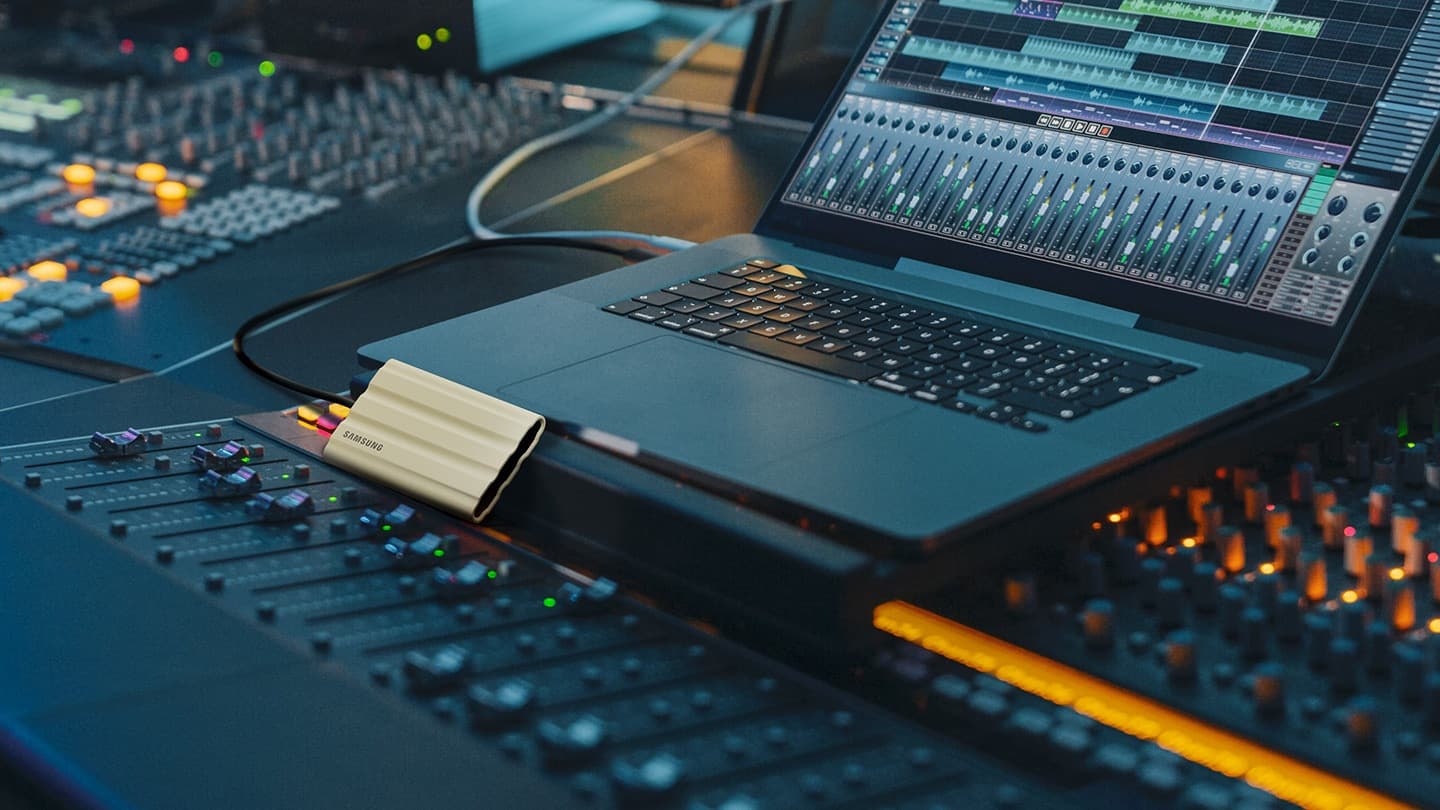
After a shoot, copy the card to your laptop or an external drive, then verify the files. The card and one verified copy are a useful two-copy backup while you keep the card intact. Before reusing it, make a second verified copy on another device. Your laptop’s internal drive and one SSD count if both retain the complete files; if the laptop cannot hold them, use two external drives.
The reliable travel routine
Make the process small enough to repeat when you are tired. Label cards by camera and day, and create a dated folder on each drive before copying. Keep the card’s original folder names and subfolders intact; camera metadata, sidecar files, and clip relationships may depend on them. Adobe’s Premiere media-transfer guide likewise recommends copying the entire folder with its subfolders.
- Stop recording and protect the card. Lock a full-size SD card if it has a write-protect switch. For microSD, put it in its adapter or case. Do not format it, delete clips, or accept a computer prompt to initialize it.
- Connect a compatible reader. Match the reader to the card type and interface. A microSD card can use a microSD slot or a full-size SD adapter. A reader with a faster interface helps only when the card, cable, computer port, and drive can also use that speed.
- Make the first copy. Copy all folders and files into a dated folder on your laptop or Drive A. Keep originals in the camera’s structure rather than selecting only the visible video files. The card and this copy are two copies while the card remains intact.
- Check the first copy. Wait for copying to finish, compare the folder contents and total file sizes as a quick catch for omissions, then open files from the destination. Spot-play clips from the start, middle, and end of the card, and open several photos. If a copy utility offers checksum verification, use it for important footage; folder size alone cannot prove every byte is intact.
- Make a second destination before reusing the card. If the laptop retains the complete originals, copy them to a separate external SSD. If it cannot hold the full set, copy from the card to two separate drives. A second folder or partition on the same drive is not an independent copy.
- Verify, then split the drives. Open files from the second destination too. Safely eject the card and drives after checking them, and put the two backup devices in separate bags. Only after two independent destination copies are verified should you consider formatting the card in the camera. Formatting erases the card, and camera makers recommend formatting cards in the camera that will use them. If a reader says an SDXC card needs formatting, stop and check reader compatibility instead of accepting the prompt.
With two destinations checked, you have three copies until the card is reused and two afterward. Keep external backup drives in separate bags to reduce the chance that one lost bag takes both.
Include phone footage in the same ingest
Phone clips can be part of the story too, so give them a dated folder alongside camera media. On iPhone, Apple documents importing card media into Photos and exporting selected photos and videos as Unmodified Originals to an external drive. That preserves the original capture rather than exporting an edited version. If iCloud Photos is set to optimize device storage, make sure the original is available before you travel or export; Apple’s iCloud copy instructions describe downloading and keeping originals first.
On Android, use the phone’s file manager or the camera app’s export workflow to copy the actual original files. Keep the phone as a source until you confirm the copies on both drives. Don’t rely on a messaging app or social upload as your master; those routes may resize or recompress video.
Choose a format for the job, not by habit
For a drive that must move between supported Mac and Windows computers, exFAT is the practical exchange format. SanDisk’s exFAT compatibility note says both macOS and Windows support it. For a Mac-only working SSD, APFS is Apple’s native format and is optimized for flash storage. Apple’s Disk Utility guide explains the formats and their platform fit.
Check the camera’s requirements before using a card across devices. Cards are often best formatted in the camera that records to them, and not every camera, reader, phone, or editing device supports every file system. Formatting erases data, so choose a drive format before loading it and never reformat a card just to solve an unrecognized-card warning.
Transfer speed is a chain: card read speed, reader interface, cable, computer port, and SSD all matter. A USB label such as 5, 10, or 20 Gbps describes a link capability, not a guaranteed copy rate. The USB-IF overview notes that connected parts must share a supported speed. SD card speed-class marks primarily describe minimum write performance under defined conditions, useful for recording; they are not a promise of your reader’s copy speed. See the SD Association’s speed-class explanation.
Keep the edit project with the originals
Camera files are the source. Your editing project records choices and links to media; it may not contain the media itself. A Resolve project library stores project data, while its source clips live wherever you put them. Blackmagic explains that a project export does not include media, while a project archive can package the media with it in its Resolve project guide. Exporting a .drp project file alone therefore should not be treated as a footage backup. For a portable Resolve package, use the Project Manager’s project archive (.dra) with the original media included, then copy that archive to both drives. Blackmagic’s Resolve 21.1 manual is the current reference for version-specific controls; archives can also include optional proxy or render-cache files.
Proxies are smaller working copies; optimized media and render cache are generated for playback or rendering. They can save space or time, but they are not a replacement for camera originals. If you make a proxy-only archive for editing on the road, label it clearly and keep the original-media copies elsewhere. In Premiere Pro, the project file also points to media; Adobe’s Project Manager can use Collect Files and Copy to New Location to gather the project’s source assets. Check the collected folder before leaving, and retain the full card backup as the source of truth.
When hotel upload is slow
Make the two local copies first. A hotel connection can fail, pause, or require a captive-portal sign-in, so don’t let an upload in progress hold your card hostage. If bandwidth or cloud space is limited, prioritize a small project file, essential selects, or clearly labeled proxies for immediate collaboration. Queue the camera originals for a trusted, faster connection, and confirm the cloud service reports the upload complete before counting it as another copy.
Cloud sync can add an off-site third copy once upload completion is confirmed, though ordinary sync may mirror deletions or mistakes. A stronger 3-2-1 style plan keeps three copies, uses at least two storage types, and stores one copy off-site. Treat that as added resilience around two verified local copies, not a reason to format a card while its upload is pending. Check for backup or version history where available. For the rest of the travel desk setup, see the portable workstation guide, the broader cool travel tech guide, how to charge devices while traveling, and how to pack electronics in a carry-on. Our rugged portable SSD guide covers drive choices.
Before you leave the location
- Copy the complete SD or microSD card folder to your laptop or Drive A.
- Check that first copy and spot-play files from the destination. The intact card is the second copy for now.
- Before reusing the card, make and check a second destination copy on the laptop or another separate drive.
- Copy phone originals into the dated ingest folder.
- Check both folders, then open files from both drives and spot-play clips.
- Keep the card until two destination copies pass; only then consider in-camera formatting.
- If both destination copies are external drives, put them in separate bags.
- Back up the editing project or create an archive that includes original media.
- Mark proxies and cache as working files, not the only surviving footage.
- Check uploads are complete before treating cloud storage as an extra copy.
Is one portable SSD enough to back up a camera card?
The card and a verified SSD are two copies while the card remains intact. Before reusing the card, make a second verified copy on your laptop’s internal drive or another external drive. After the card is formatted, keep two complete copies on separate devices.
Should I copy only the video files from an SD card?
Copy the complete card folder, including subfolders and small sidecar files. Some camera formats use folder structure or companion files, and retaining the original layout makes later editing and recovery less error-prone.
Should I use exFAT or APFS for a travel SSD?
Use exFAT when the drive must move between supported Mac and Windows systems. Use APFS for a Mac-only SSD workflow. Check camera and device compatibility first, and format an empty drive before loading it because formatting erases its contents.
Do Resolve proxies or a Premiere project file back up my footage?
No. A project file stores editing decisions and references; it may not include the source media. Proxies and cache are derivatives for editing performance. Keep original camera files separately, and use a media-inclusive archive or collect-and-copy workflow when you need a portable project package.
What should I upload first on slow hotel Wi-Fi?
Send a small project file and only the selects or proxies needed for immediate work, with proxies clearly labeled. Keep two verified local copies of the originals and upload them later over a more reliable connection. Confirm completion before counting a cloud copy.
Sources
Workflow guidance checked October 28, 2026. This guide is based on manufacturer and standards documentation; no travel backup hardware is presented as hands-on tested.
Keep going
Related buying guideBest neck wallets for travel: 4 picks for 1 or 2 passports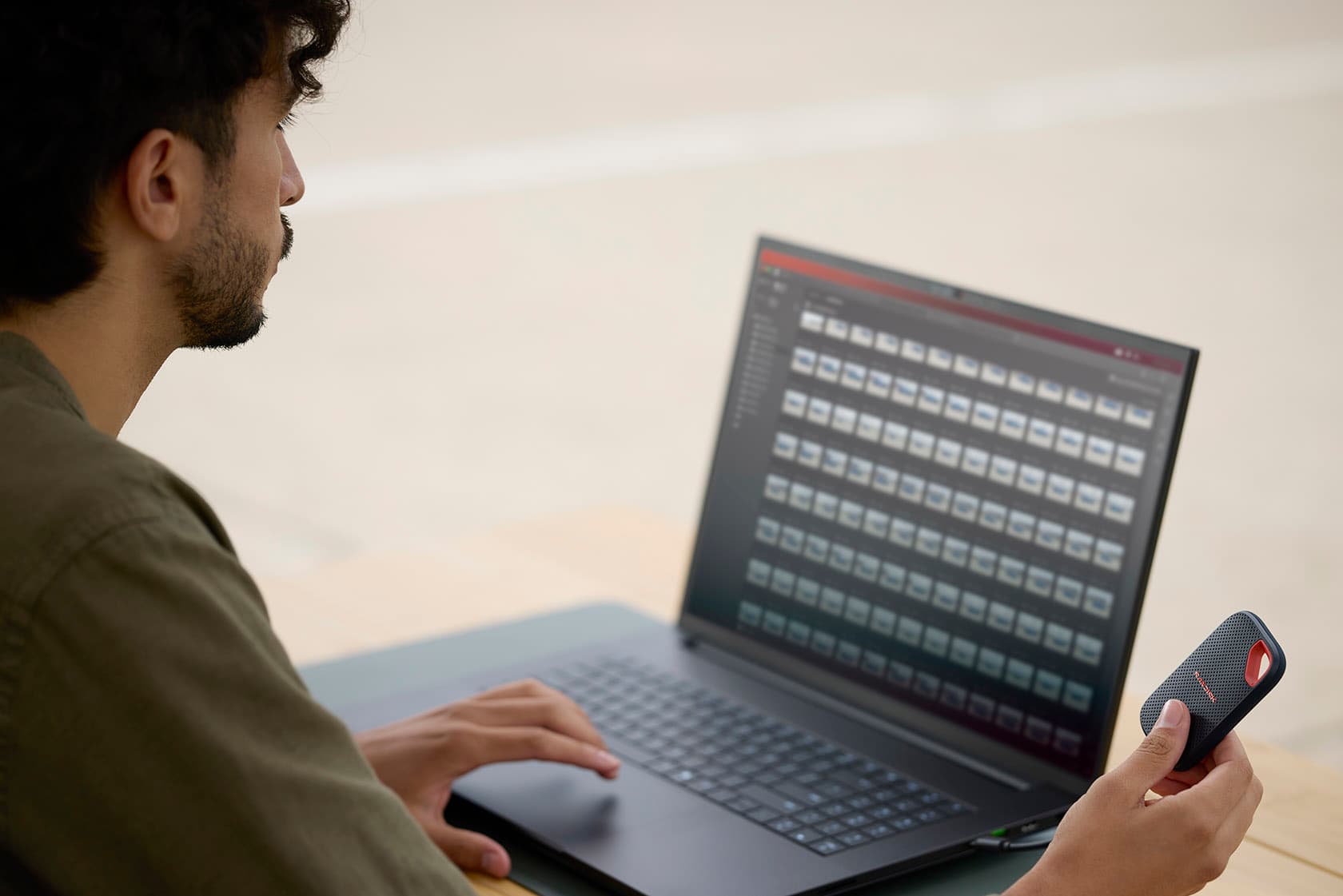

Researched, not hands-on tested
Updated Oct 28, 2026Our recommendations draw on manufacturer documentation, retailer listings, owner feedback, and comparisons with alternatives.
As an Amazon Associate I earn from qualifying purchases. We may earn a commission from links here, at no extra cost to you. How we research →
Related buying guide
Best neck wallets for travel: 4 picks for 1 or 2 passports